> ## Documentation Index
> Fetch the complete documentation index at: https://dripart-chore-sync-comfy-api-v2-spec-12fd5b4.mintlify.site/llms.txt
> Use this file to discover all available pages before exploring further.
# Hunyuan 3D Partner Nodes Model Generation ComfyUI Official Example
> This article will introduce how to use Hunyuan 3D node's API in ComfyUI for 3D model generation
Hunyuan 3D 3.0 is Tencent's state-of-the-art 3D generation model that enables minutes-level 3D content creation. It can generate production-ready 3D assets from text prompts, images, or sketches with far lower barriers to entry than traditional 3D modeling pipelines.
ComfyUI has now natively integrated the corresponding Hunyuan 3D API, allowing you to conveniently use the related nodes in ComfyUI for model generation.
Currently, ComfyUI's Partner nodes support the following Hunyuan 3D model generation capabilities:
* Text-to-3D generation
* Image-to-3D generation
* Multi-view-to-3D generation
To use the Partner Nodes, you need to ensure that you are logged in properly and using a permitted network environment. Please refer to the [Partner Nodes Overview](/tutorials/partner-nodes/overview) section of the documentation to understand the specific requirements for using the Partner Nodes.
Make sure your ComfyUI is updated.
* [Download ComfyUI](https://www.comfy.org/download)
* [Update Guide](/installation/update_comfyui)
Workflows in this guide can be found in the [Workflow Templates](/interface/features/template).
If you can't find them in the template, your ComfyUI may be outdated.
If nodes are missing when loading a workflow, possible reasons:
1. You are not using the latest ComfyUI version (Nightly version)
2. Some nodes failed to import at startup
* [Cloud](https://cloud.comfy.org) will update after ComfyUI stable release.
So, if you find any core node missing in this document, it might be because the new core nodes have not yet been released in the latest stable version. Please wait for the next stable release.
## Use cases
* **Game development ideation**: Fast generation of characters, props, and environments with optimized topology for rigging and real-time rendering
* **Product & e-commerce**: Turn product photos into interactive 3D models for online display
* **Industrial design**: Sketch-to-3D prototyping and 3D-print-ready part decomposition
* **VFX & animation**: High-resolution assets with professional UVs and PBR materials
## Getting started
### 1. Access workflow templates
1. Open the Template Library in the sidebar
2. Navigate to **3D** → **Hunyuan 3D**
3. Select a workflow template for Hunyuan 3D
### 2. Run the workflow
1. Input your text prompt, images, or sketches depending on the workflow type
2. Click the `Run` button, or use the shortcut `Ctrl(cmd) + Enter` to execute model generation
3. After the workflow completes, preview and export your 3D model
HunYuan3D: Text to Model
Input a text prompt or upload a reference image to generate a detailed 3D model asset.
**Example prompt**: "Mechanical dolphin with gears, steampunk"
 Open in Comfy Cloud
Download JSON or search "HunYuan3D: Text to Model" in Template Library
Open in Comfy Cloud
Download JSON or search "HunYuan3D: Text to Model" in Template Library
HY 3D: Image to Model

Upload an image to generate a 3D model with geometry and PBR textures. Upload 2–4 multi-view images from different angles for improved geometry and material fidelity.
 Open in Comfy Cloud
Download JSON or search "HY 3D: Image to Model" in Template Library
**Input materials**
Upload these files to the matching `LoadImage` nodes:
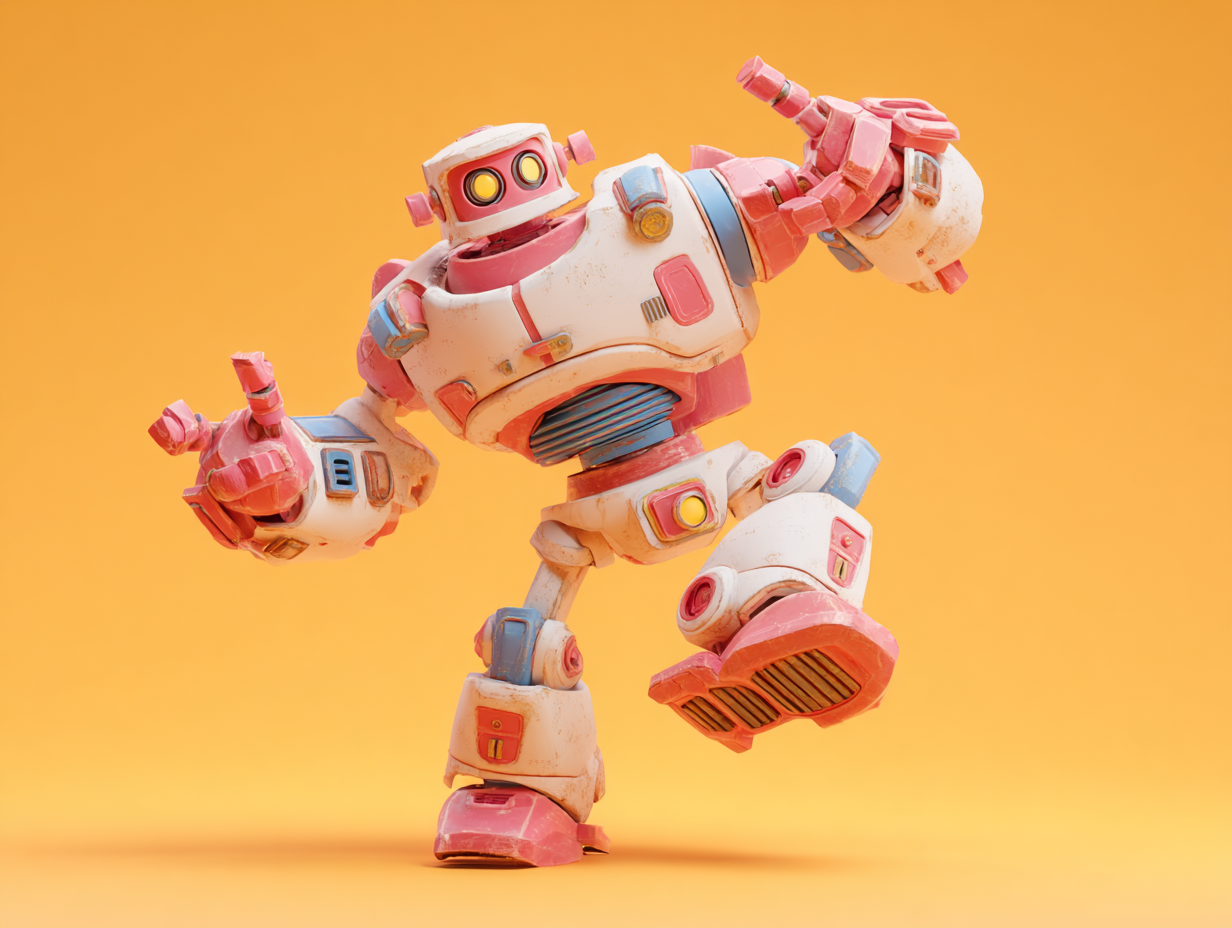
`LoadImage` node 1 · `pink_robot_front.png`
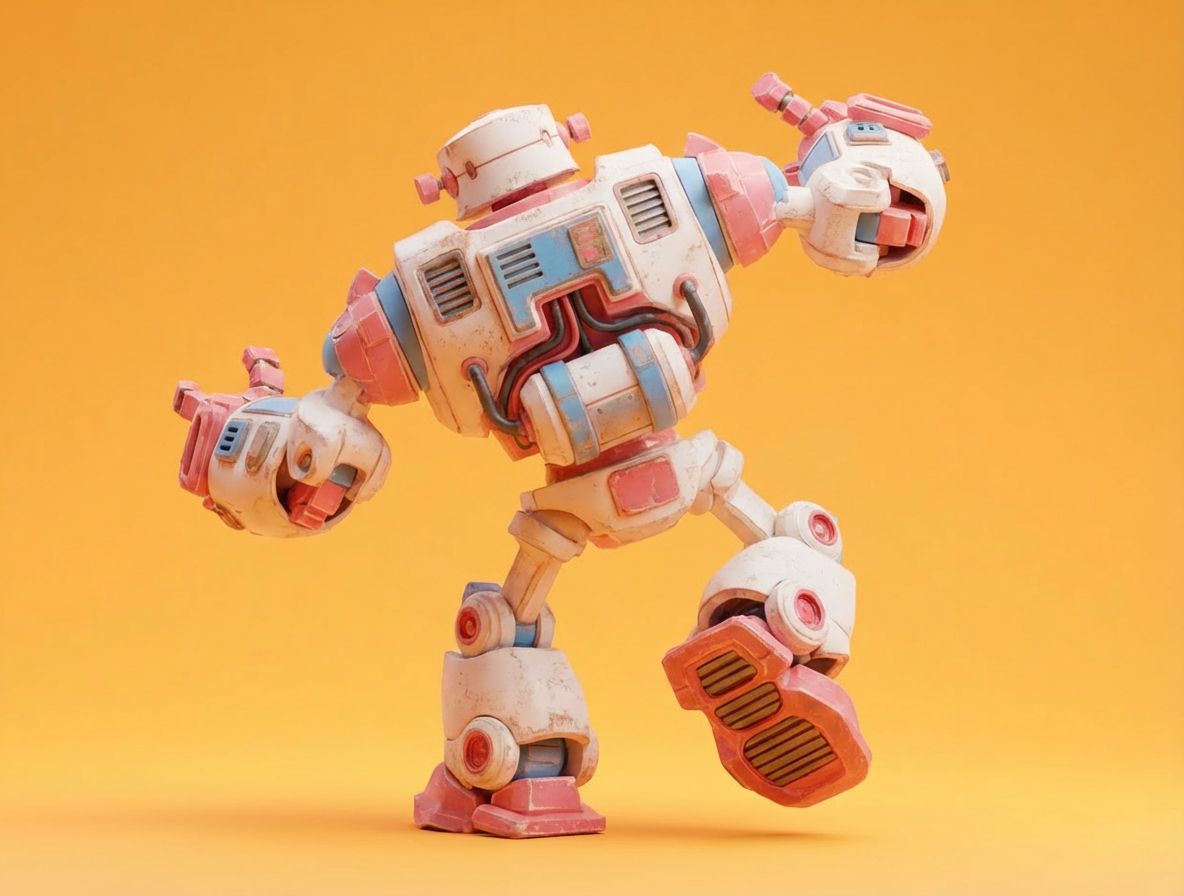
`LoadImage` node 10 · `pink_robot_back.png`
## Advanced features
Following the [initial HY 3D 3.0 integration](https://blog.comfy.org/p/hunyuan-3d-30-in-comfyui-state-of), Hunyuan 3D's advanced processing features are now available via Partner Nodes. These workflows help close the gap between generation and production by bringing key post-processing steps into ComfyUI.
Open in Comfy Cloud
Download JSON or search "HY 3D: Image to Model" in Template Library
**Input materials**
Upload these files to the matching `LoadImage` nodes:
`LoadImage` node 1 · `pink_robot_front.png`
`LoadImage` node 10 · `pink_robot_back.png`
## Advanced features
Following the [initial HY 3D 3.0 integration](https://blog.comfy.org/p/hunyuan-3d-30-in-comfyui-state-of), Hunyuan 3D's advanced processing features are now available via Partner Nodes. These workflows help close the gap between generation and production by bringing key post-processing steps into ComfyUI.
HY 3D: 3D Parts Decomposition

Upload a 3D model to automatically segment it into its constituent parts, generating a fully decomposed 3D asset for reuse and editing.
 Open in Comfy Cloud
Download JSON or search "HY 3D: 3D Parts Decomposition" in Template Library
Open in Comfy Cloud
Download JSON or search "HY 3D: 3D Parts Decomposition" in Template Library
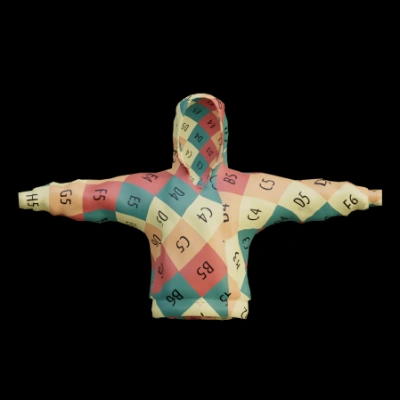
HY 3D: UV Unwrapping
Upload a 3D model to perform UV unwrapping. Generate a processed model with optimized UV layout for texturing.
 Open in Comfy Cloud
Download JSON or search "HY 3D: UV Unwrapping" in Template Library
Open in Comfy Cloud
Download JSON or search "HY 3D: UV Unwrapping" in Template Library
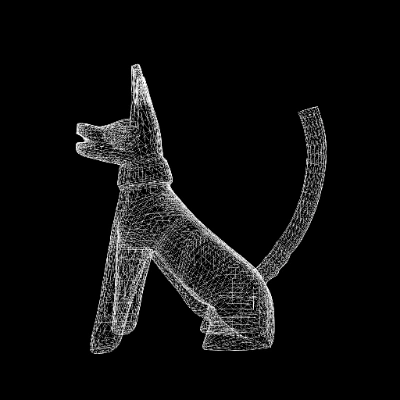
HY 3D: Smart Topology
Upload a high-poly 3D model file. Generate a lower-polygon, topologically optimized 3D model with a specified reduction level.
 Open in Comfy Cloud
Download JSON or search "HY 3D: Smart Topology" in Template Library
Open in Comfy Cloud
Download JSON or search "HY 3D: Smart Topology" in Template Library